10 software demo tools for preparing and reviewing
A mock, a prototype and a rehearsal recording answer different questions. Choose the tool that helps with the decision in front of the customer.

Start with a prototype or a shared board when the customer needs to discuss a workflow. Use a mock or a component story when the system is not ready, and a recording or playback tool when the team needs to review what happened. The right choice depends on the part of the demonstration that needs work.
Suppose a finance director wants invoices approved sooner. A Figma prototype could show the intended approval journey, while a Postman mock could let the team rehearse a simulated response from an unavailable service. Neither establishes that the actual integration works. If the buyer needs to explore the flow later, an interactive tour or a personalised video answers a different question from a live test.
The ten tools below are selected for different jobs, not ranked as substitutes. Agree the customer's business question and what the demonstration needs to make visible before choosing how to show it. A Proof of Value explains how that decision differs from a technical test.
1. Excalidraw
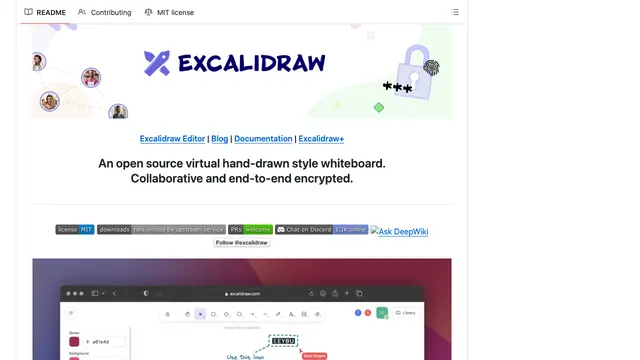
Excalidraw is a collaborative whiteboard for drawing diagrams. Use it before opening the product to map the customer's current workflow and ask which step they want to change. A shared picture gives both sides a way to correct the sequence before the demo team builds a story around it.
The diagram needs preparation and participants need an appropriate way to access it. A neat picture is still a hypothesis until the people doing the work confirm it. Check what information can be shared before adding customer details to a board.
2. Figma
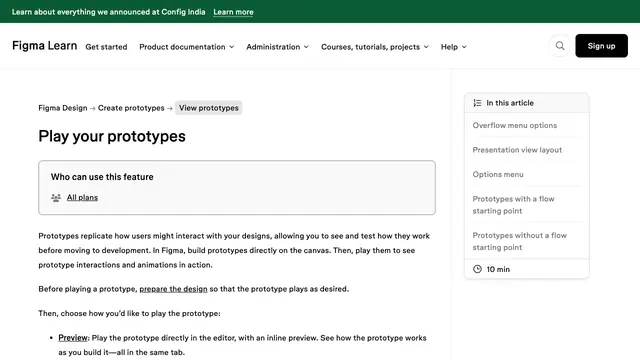
Figma prototypes connect designed screens into an interactive flow that can be previewed or presented. Use a prototype to discuss a proposed experience when the software is not yet ready, or to focus a conversation on the sequence the user would follow.
A prototype can demonstrate an intended interaction without proving that the underlying integration or performance exists. Say which parts are designed and which are working software, especially when the audience is judging implementation risk.
3. Postman mock servers
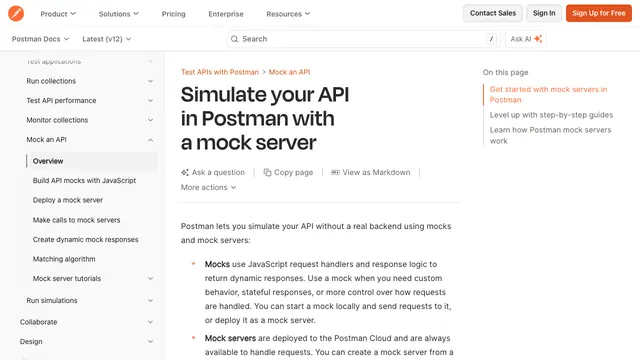
Postman's mock servers can return simulated API responses without a production backend. They are useful when a demo depends on a predictable response from a service that is unavailable during preparation. The team can then rehearse the next step without waiting for that dependency.
Make the simulated response explicit. A mock demonstrates the flow you set up, not the real service's reliability, permissions or behaviour with the customer's data. Check the relevant access, data and plan conditions before using a hosted mock.
4. Storybook
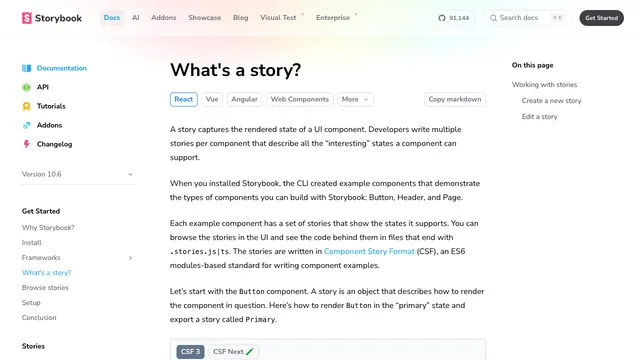
Storybook stories describe rendered states of a user-interface component. For a technical audience, a story can help the team prepare a specific empty, populated or error state without navigating the entire product to reach it.
A component state is not the complete customer workflow. It may also require development work and a suitable project setup. Use it to make a particular state visible, then return to the broader question the customer needs the demo to answer.
5. Chrome DevTools
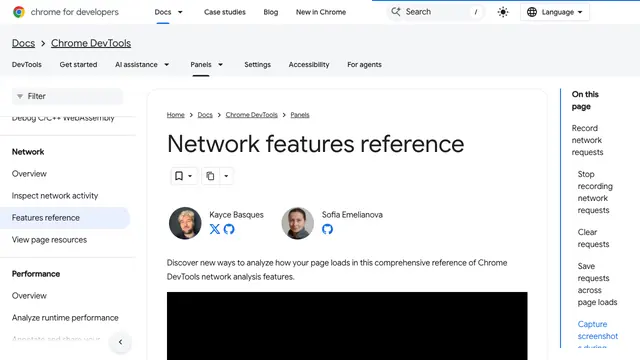
Chrome's network tools can inspect requests and emulate conditions such as a slower connection or an offline browser. They are useful in rehearsal when a demo relies on a live service: see which step waits for a response and what the audience would see if that response is delayed.
The settings simulate conditions in the browser; they do not predict every customer's network or production environment. Disable any test throttling before the actual meeting, and avoid exposing sensitive request contents while screen sharing.
6. OBS Studio
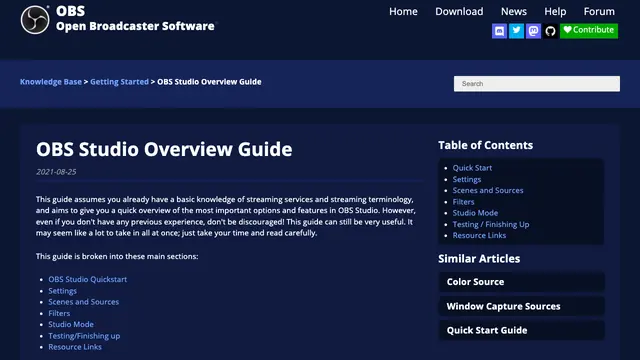
OBS Studio lets a presenter prepare scenes containing sources such as a window, an image and audio. Studio Mode allows changes to be prepared separately from the currently displayed scene. That can help when a demonstration needs a controlled transition between a product, a diagram and a fallback view.
For a simple one-window walkthrough, configuring scenes may add work without improving the conversation. It becomes useful when the presenter needs a rehearsed switch between a product, diagram and fallback. Window capture, microphone and the scene sent to the meeting all need checking beforehand.
7. Navattic Capture Editor
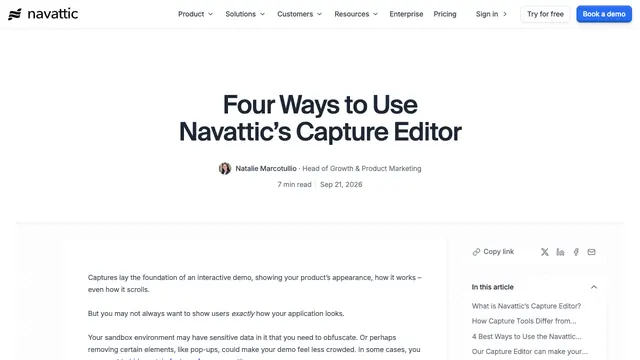
Navattic's Capture Editor lets a team edit the captured steps of an interactive product demo, including text, charts and elements that should be hidden or blurred. It is useful when a customer needs a guided product tour to explore after a conversation rather than another scheduled live walkthrough.
That edited capture is a presentation of selected screens, not proof that the underlying system behaves the same way with the buyer's data. Review each step and verify that confidential information has actually been removed. Check access and commercial terms with the provider before committing to a workflow.
8. Demostack Cloner
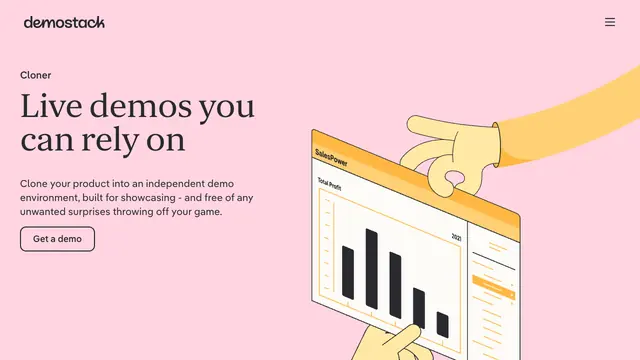
Demostack's Cloner creates a separate demonstration environment and simulates responses learned from the application. A team can edit elements such as text, images and charts. Consider it when a live demo needs room for a presenter to navigate beyond a fixed set of captured screens while reducing dependence on the production environment.
The vendor describes a simulated backend, so be explicit about what is and is not live. A clone also needs to be maintained as the real application changes. Validate the proposed experience and its data handling against your product and commercial requirements before purchase.
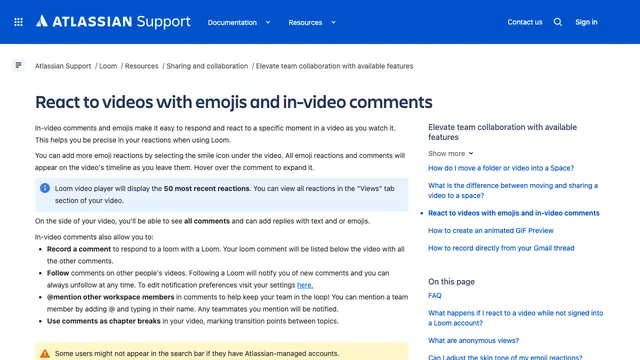
9. Loom comments
Loom's in-video comments let colleagues respond to a particular moment in a recording. Use a rehearsal recording to ask whether a transition explains the customer's problem or whether the presenter moved on before the important result was visible.
Agree what can be recorded and who may access it. Loom notes that viewers' ability to see and leave comments depends on sign-in and settings. A review of a recording can improve clarity, but it cannot replace hearing the customer's questions live.
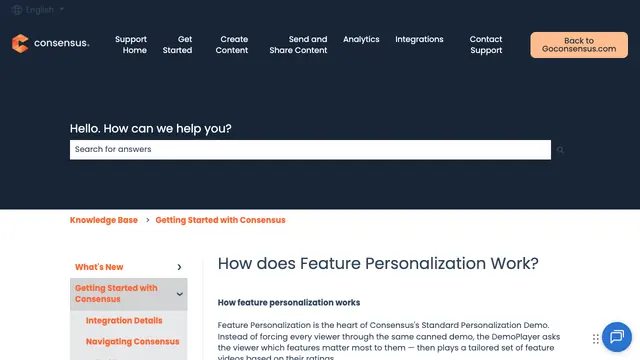
10. Consensus feature personalization
Consensus feature personalization asks a viewer which features matter and plays the relevant feature videos according to those choices. It is suited to a follow-up where several people need to explore different parts of the product without attending the same live presentation.
The team still has to prepare useful videos and decide what each choice means. A viewer's feature selection is a clue for the next conversation, not evidence that the buying group has agreed on business value. Confirm access and plan terms before building the process around it.
Before selecting a tool, write down the decision the customer is trying to make and the one step that could prevent them from making it. A diagram, mock, recording and live product each answer different questions. If you lead a Sales Engineering team and want help with decisions like these, Sales Engineering advisory covers deal reviews and Proof of Value criteria.
Sources
- Excalidraw
- Figma
- Postman mock servers
- Storybook
- Chrome DevTools
- OBS Studio
- Navattic Capture Editor
- Demostack Cloner
- Loom comments
- Consensus feature personalization
Sources checked on 29 October 2026.